
Testing using MinIO Console
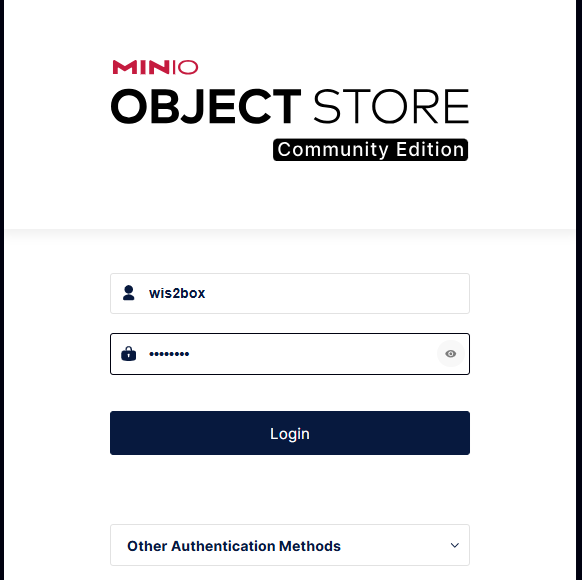
To access the MinIO user interface, visit http://<your-host-ip>:9001 in your web browser.
You can login with your WIS2BOX_STORAGE_USERNAME and WIS2BOX_STORAGE_PASSWORD:
Note
The WIS2BOX_STORAGE_USERNAME and WIS2BOX_STORAGE_PASSWORD are defined in the wis2box.env file.
To test the data ingest, add a sample file for your observations in the wis2box-incoming storage bucket in the path matching your dataset identifier as follows:
Select ‘browse’ on the
wis2box-incomingbucket and select ‘Choose or create a new path’ to define a new folder path.
Define a new folder path that matches the dataset metadata identifier or the topic in the data mappings, for example:
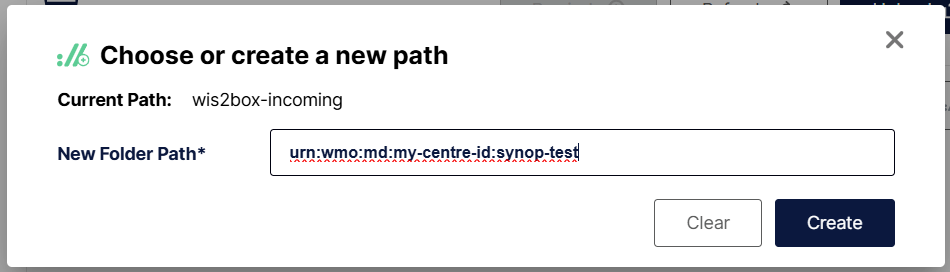
Enter the folder path and use “Upload” to upload a file from your local machine in the newly created folder path:
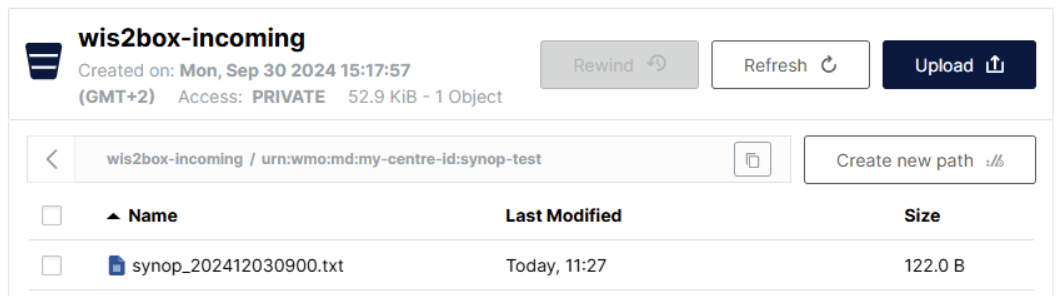
After uploading a file to wis2box-incoming storage bucket, you can browse the content in the wis2box-public bucket.
If the data ingest was successful, data will have been moved to the wis2box-public bucket, in a folder matching the dataset identifier.
If the no data appears in the wis2box-public bucket, check for errors and warnings in the dashboard at http://<your-host-ip>:3000.
After addressing the issues, you can re-upload the file to the correct folder in wis2box-incoming bucket to trigger the data ingest process again.
Once you have verified that the data ingest is working correctly you can prepare an automated workflow to send your data into wis2box.