
Alerts
Grafana alerting configuration
Grafana provides a built-in alerting system that allows users to monitor data and receive notifications when defined conditions are met.
In wis2box, alerting is configured using Grafana’s alerting interface. Alerts are defined as alert rules, and notifications are delivered via contact points such as email.
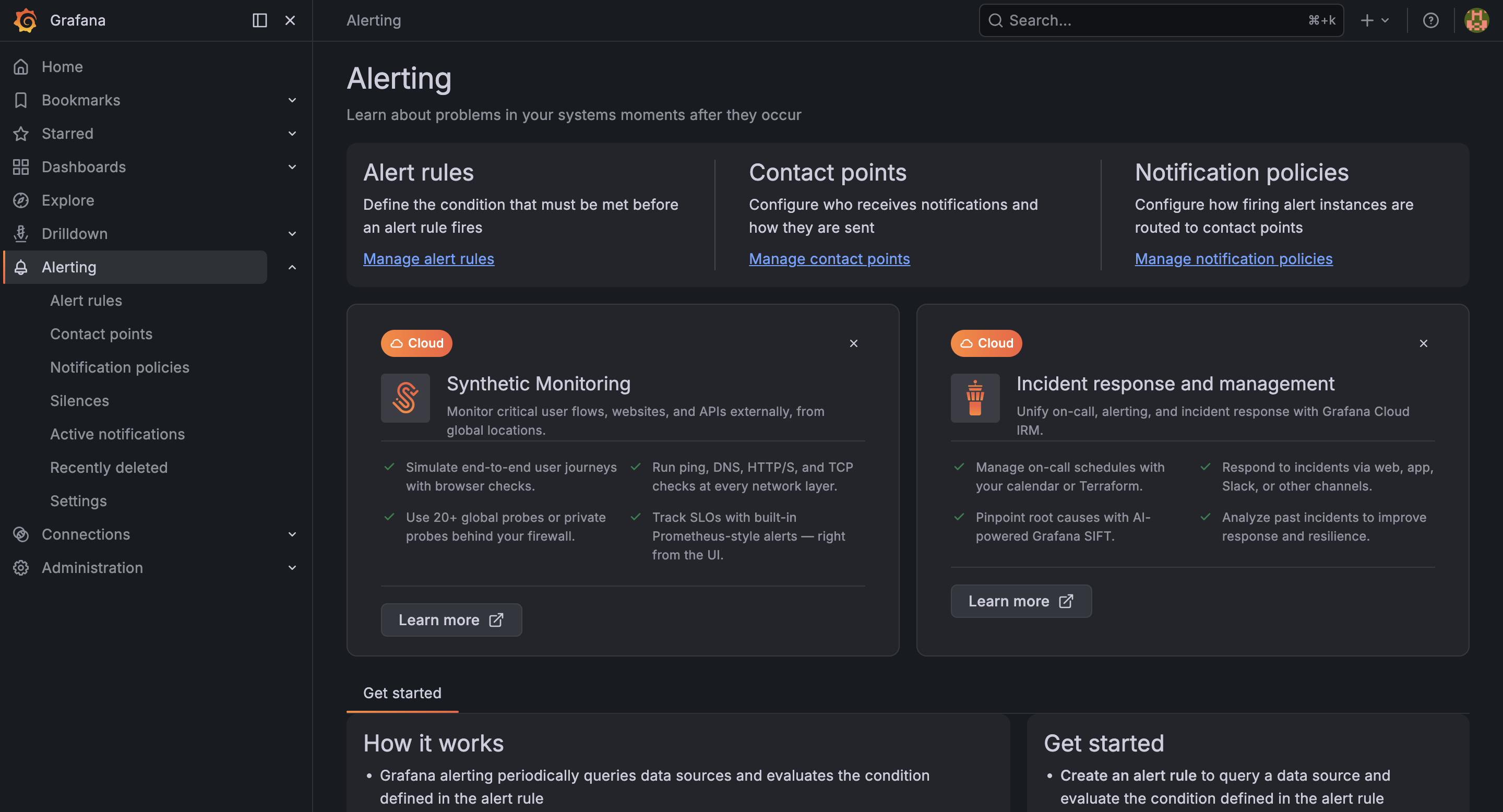
This guide explains how to configure email notifications and create alert rules in Grafana.
Configure SMTP for email notifications
To enable email notifications, Grafana must be configured with an SMTP server.
In wis2box deployments, SMTP settings are defined using environment variables in the Docker Compose configuration.
docker-compose.monitoring.yml:
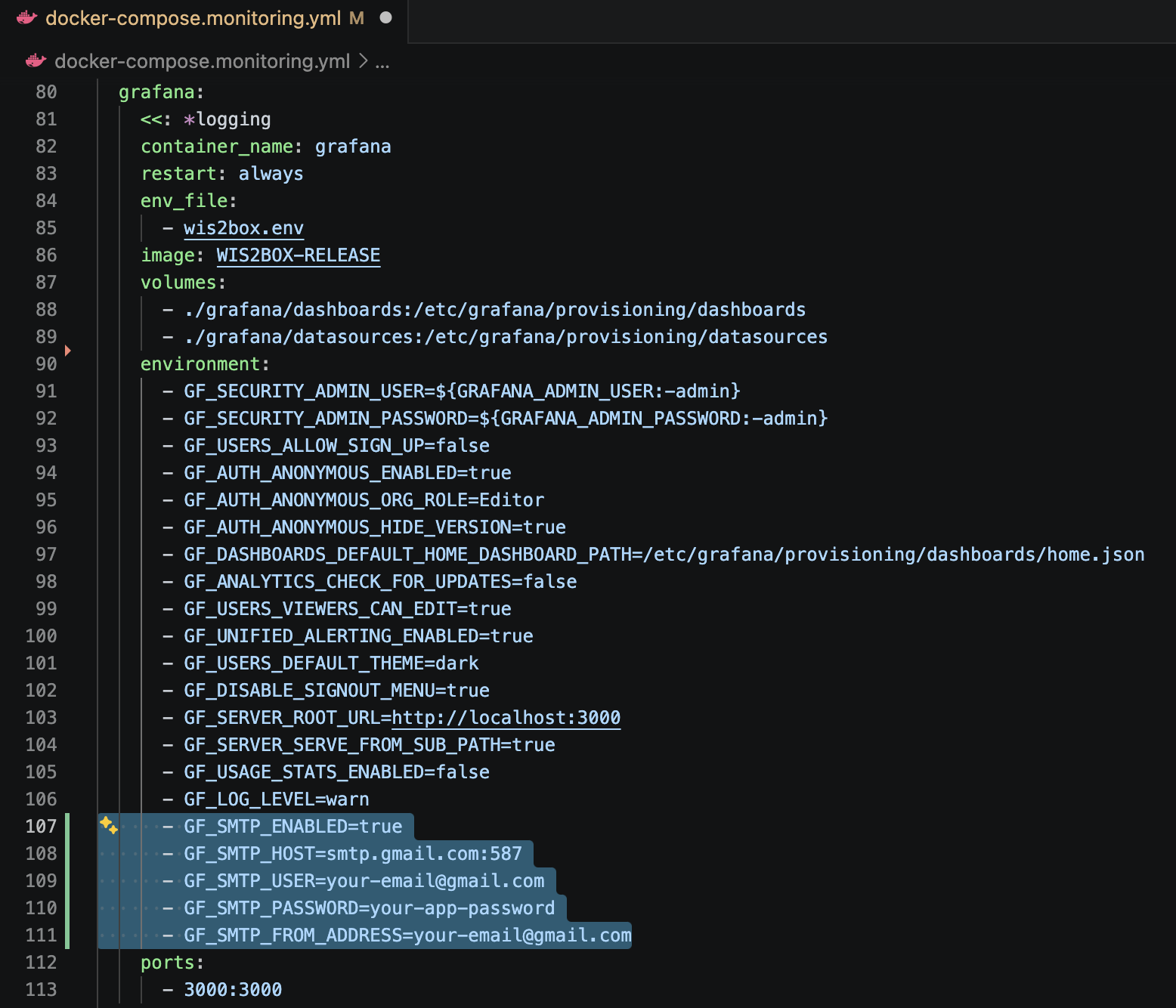
After updating the configuration, restart wis2box:
python3 wis2box-ctl.py restart
Create a contact point
Contact points define how alert notifications are delivered.
Open Grafana in your browser
Navigate to Alerting –> Contact points
Click New contact point
Select Email
Enter the recipient email address
Click Save contact point
Configure notification policies
Notification policies define how alerts are routed to contact points.
Navigate to Alerting –> Notification policies
Edit the default policy
Under Contact point, select the email contact point created earlier
Save changes
Note
If no notification policy is configured, alerts will not be delivered.
Create an alert rule
Alerts are defined as alert rules.
Navigate to Alerting –> Alert rules
Click New alert rule
Configure:
Data source (for example, Prometheus)
Query
Condition (threshold or expression)
Evaluation interval
Click Save rule
Test the alert configuration
Trigger the alert rule by adjusting the condition or using test data.
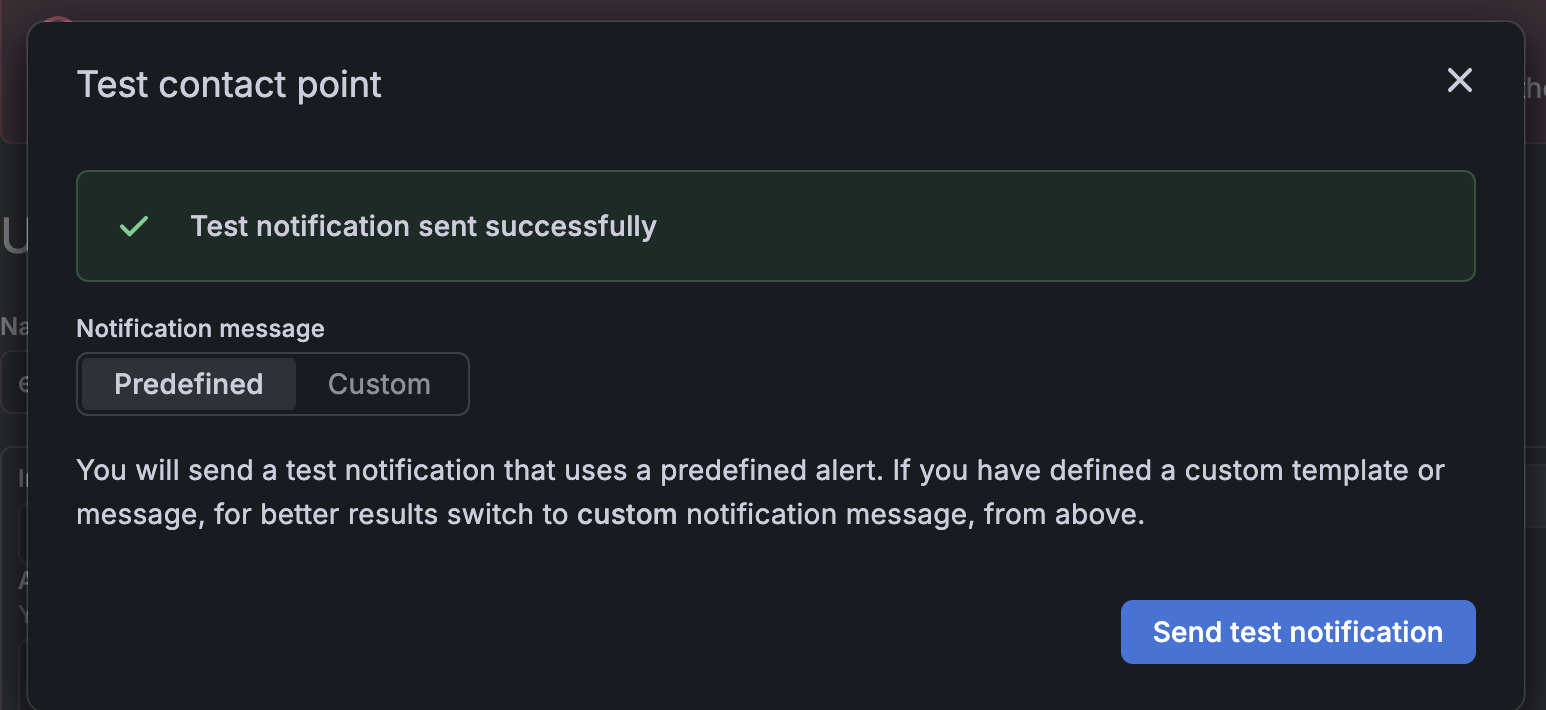
After configuring the contact point and alert rule, Grafana will send an email notification when the alert is triggered.

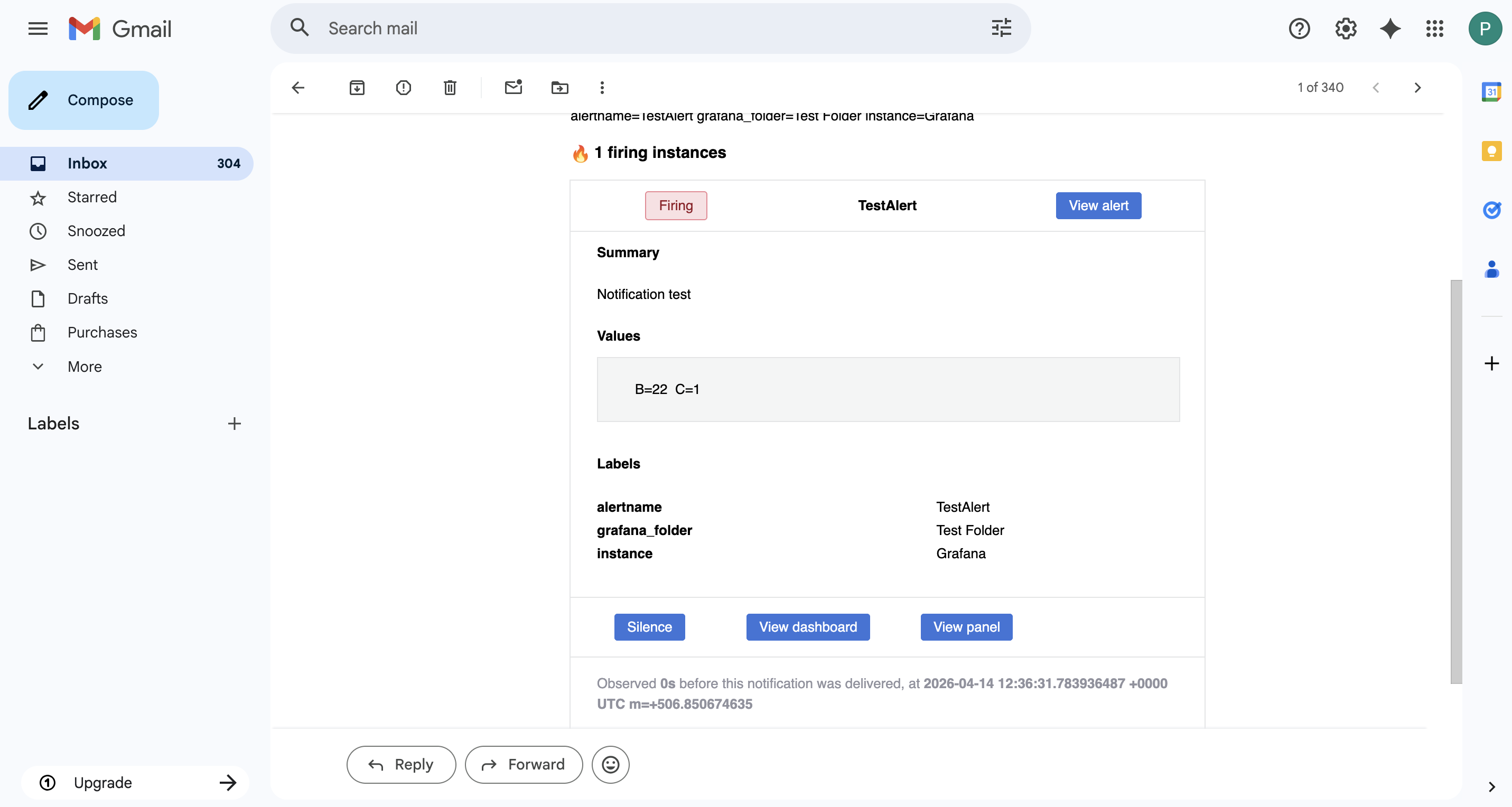
The email includes details such as the alert name, state (e.g. Firing), summary, and associated labels. It also provides quick links to view the alert, dashboard, or panel in Grafana.
An example of a received email notification is shown below:
Note
For Gmail:
If 2FA is enabled, generate an App Password and use it as the SMTP password
If 2FA is not enabled, ensure SMTP access is allowed
For corporate email systems:
Contact your IT department for SMTP server settings and authentication details